TextToDo SMS Consent
Effective September 18, 2026
This page describes exactly how a person agrees to receive text messages from TextToDo, a product of ServePS Software Solutions, LLC. It is published so that users, wireless carriers, and messaging reviewers can see the complete opt-in process, the consent language shown to the user, and every message the program sends.
Program Summary
| Program name | TextToDo |
|---|---|
| Company | ServePS Software Solutions, LLC |
| Sender identification | Messages begin with TextToDo or TextToDo by ServePS Software Solutions, LLC |
| Purpose | Reminders and notifications for tasks and events the user schedules in the TextToDo app, sent as a backup to push notifications |
| Where consent is collected | Inside the TextToDo iOS app, at the moment the user enters a phone number |
| Consent type | Double opt-in: an unchecked consent checkbox, phone verification, and a YES reply by text |
| Message frequency | Varies with the tasks and reminders the user creates |
| Cost | Message and data rates may apply |
| Opt out | Reply STOP at any time |
| Help | Reply HELP, or email support@serveps.net |
| Required to use TextToDo? | No. SMS is optional. TextToDo works fully with push notifications alone. |
Where Users Opt In
TextToDo does not collect phone numbers through a website, paper form, keyword advertisement, or purchased list, and it never texts a number the user did not enter and verify themselves. The only way to join is inside the TextToDo app, on one of two screens that show the same consent checkbox:
- Onboarding: the “SMS Backup Reminders” step of the Getting Started flow, shown when a new user sets up the app.
- Settings: the Verify Phone screen, for users who skipped SMS during onboarding and want to turn it on later.
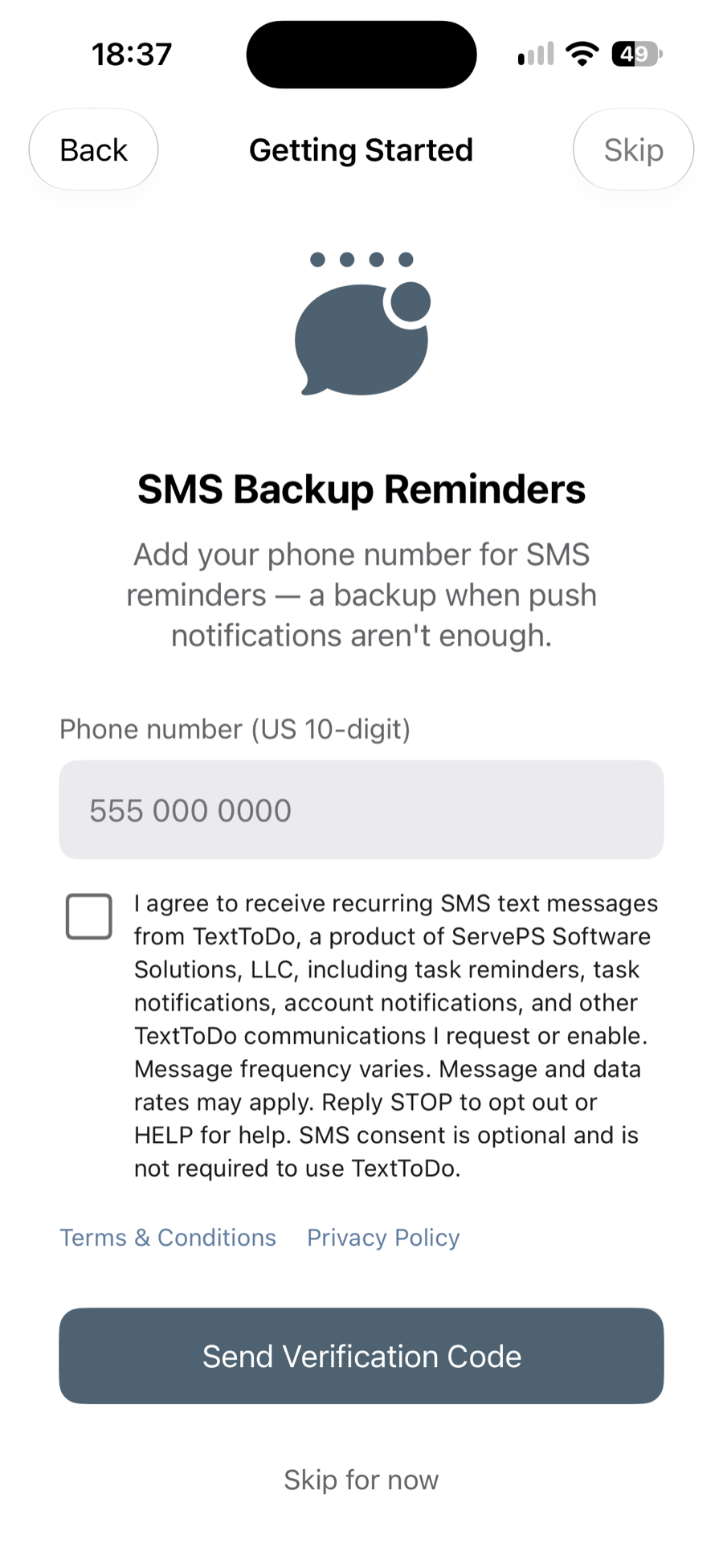
- Screen title: “SMS Backup Reminders”, explaining that SMS is a backup for when push notifications aren’t enough.
- Phone number field: the user types their own US 10-digit mobile number.
- Consent checkbox: unchecked by default, with the full disclosure printed beside it.
- Legal links: tappable Terms & Conditions and Privacy Policy links directly under the disclosure.
- Send Verification Code: disabled until the box is checked and a valid number is entered.
- Skip for now: the user can decline SMS entirely and keep using the app.
The Consent Disclosure
This is the exact text of the checkbox label. The user must check this box themselves before any message can be sent:
The disclosure identifies the program and company, describes the kind of messages, states that they are recurring, discloses that frequency varies and that message and data rates may apply, explains STOP and HELP, and states that consent is optional. It links to the Terms & Conditions and Privacy Policy.
Step-by-Step Opt-In Process
Step 1: The user chooses to add a phone number
During onboarding, or later in Settings, the user reaches the SMS Backup Reminders screen shown above. Nothing about this step is mandatory. The user can tap Skip for now (or leave Settings) and use TextToDo with push notifications only.
Step 2: The user enters their number and checks the consent box
The user types their mobile number and reads the disclosure. The checkbox starts unchecked. It is never pre-selected, and it is not combined with any other agreement, such as account creation or the app’s general terms. The Send Verification Code button stays disabled until the user personally checks the box. The TextToDo server enforces the same rule on its side: it will not record consent or enroll a number unless the box was checked.
Step 3: The user verifies they own the number
After checking the box and tapping Send Verification Code, the user receives a one-time 6-digit code by text and types it into the app. This proves the person giving consent controls the phone number. When the code is confirmed, TextToDo records the consent (see Consent Records below).
Step 4: TextToDo asks the user to confirm by text
Verification alone does not start reminders. TextToDo sends one opt-in request, and the app shows that it is waiting for the user’s reply:
Step 5: The user replies YES
Only a reply of YES (or START or UNSTOP) from a number that has already completed Steps 2 and 3 enrolls it. A keyword texted from any other number does not create a subscription. On confirmation, TextToDo sends:
If the user never replies YES, no reminders are sent to the number.
Messages Users Receive
After enrolling, users receive messages about the tasks and events they created in TextToDo. TextToDo does not send marketing or promotional texts. Examples, with details filled in from the user’s own reminders:
Task or event reminder
Time to leave
Task captured by text
TextToDo: Captured "Call Dr. Lee at 720-555-0142" for Sep 17, 2026, 9:00 AM. Reply CONFIRM to schedule or open the app.Replies to your texts:
SNOOZE (also SNOOZE10, SNOOZE 30)
TextToDo: Snoozed "Dentist appointment" for 10 min. We'll text you again at 1:50 PM.TextToDo: Snoozed "Dentist appointment". Quiet hours are on, so we'll text you at 7:00 AM.TextToDo: Snoozed "Dentist appointment" for 10 min. You've hit today's text limit, so it'll come as a notification.TextToDo: Snooze between 1 and 240 minutes, e.g. SNOOZE10.TextToDo: Nothing to snooze right now.DONE
TextToDo: Marked "Dentist appointment" done. Reply UNDO within 10 min if that was a mistake.TextToDo: No pending tasks.UNDO
TextToDo: Reopened "Dentist appointment".TextToDo: Nothing recent to undo.CONFIRM (after texting in a task)
TextToDo: Confirmed "Call Dr. Lee at 720-555-0142". 1 reminder set.TextToDo: Nothing to confirm.Message volume is capped per user per hour and per day.
Opting Out
Users can stop messages at any time by replying STOP. TextToDo also honors CANCEL, QUIT, OPTOUT, UNSUBSCRIBE, STOPALL, REVOKE, and END, in upper or lower case. If a message is ambiguous, the opt-out wins. The user receives one final confirmation and nothing further:
Opting out of SMS does not delete the user’s TextToDo account. Reminders continue by push notification.
Resubscribing
A user who opted out can rejoin by replying START, YES, or UNSTOP, and receives the subscription confirmation shown in Step 5. Only numbers that previously gave consent in the app can resubscribe this way.
Help
Replying HELP or INFO at any time, whether subscribed or not, returns:
Users can also reach ServePS directly at support@serveps.net or +1 (720) 706-7357.
Consent Records
When a user gives consent, TextToDo stores:
- the date and time consent was given;
- the phone number, as verified by the one-time code;
- where consent was given (onboarding or Settings);
- the version of the disclosure text the user saw;
- the IP address and app user agent at the time of consent;
- the date and time of the YES confirmation;
- every later opt-out, resubscribe, and HELP event, with the keyword received.
Privacy of Mobile Information
Mobile information will not be shared with third parties or affiliates for marketing or promotional purposes. Text messaging originator opt-in data and consent will not be shared with any third parties. Phone numbers are shared only with the messaging provider used to deliver and receive TextToDo messages. See our Privacy Policy and the Text Messaging section of our Terms & Conditions.
Wireless carriers are not liable for delayed or undelivered messages.
Contact
ServePS Software Solutions, LLC
300 Nickel Street, Suite 11, PMB 1036
Broomfield, CO 80020
Email: support@serveps.net
Phone: +1 (720) 706-7357